
FiveM Qbox Dealership Setup: Vehicle Shop Configuration Guide
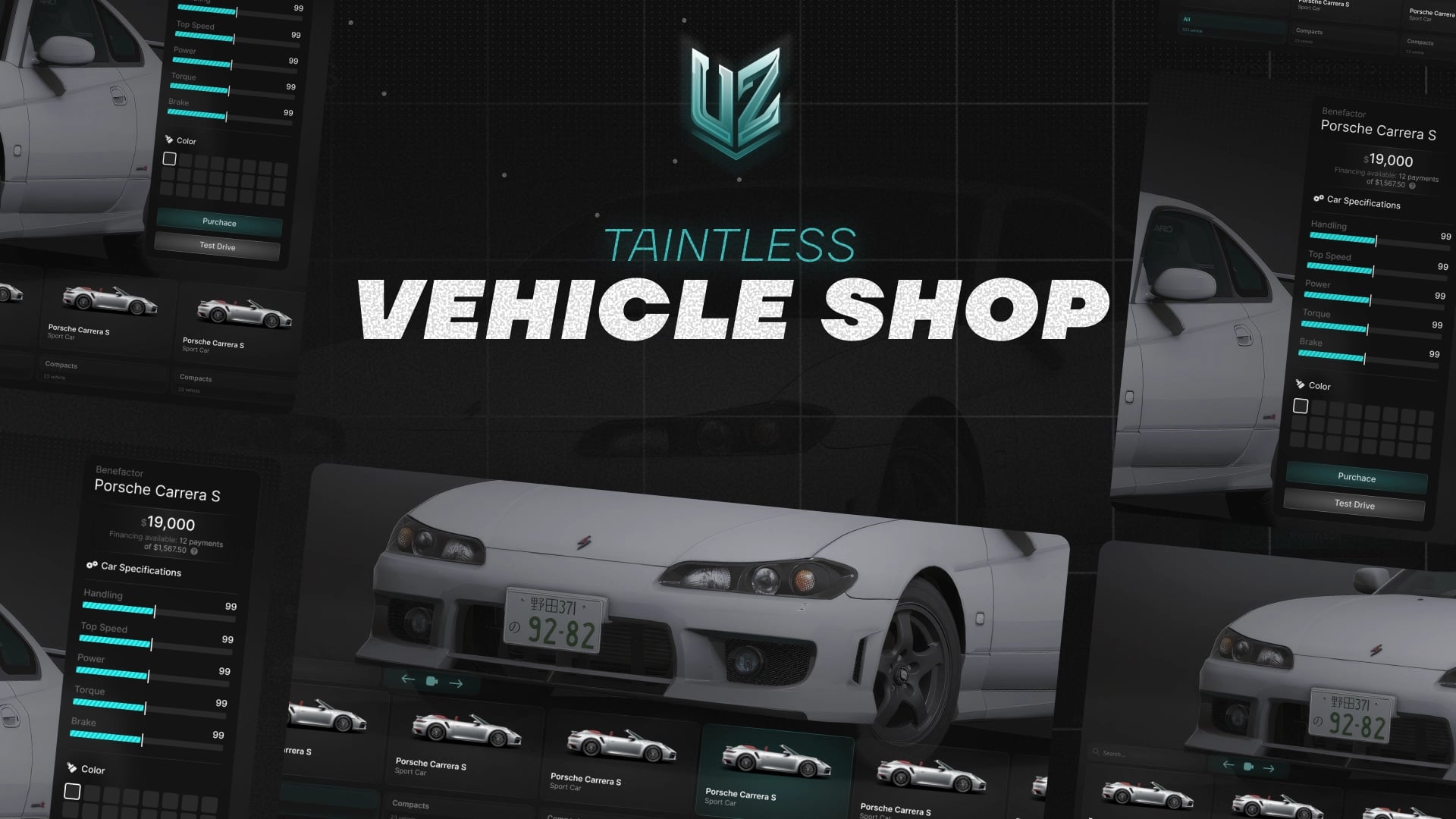
A Qbox dealership needs more than a vehicle list. The framework connection, database dependency, showroom coordinates, delivery points, finance rules, and interaction system must all agree. This guide explains how to configure those parts with the UZ FiveM Vehicle Shop.
The examples use Qbox, but the same resource also supports QBCore and ESX. You can make the equivalent framework selection without changing the dealership structure.
Requirements
Before editing the vehicle shop, confirm that the server has:
ox_liboxmysql- FiveM server build 7290 or newer
- A working Qbox installation
Start the dependencies before the vehicle shop resource in server.cfg. Keep the resource folder name supplied with the download unless the installation documentation explicitly tells you to change it.
1. Select Qbox or use automatic detection
The main settings are stored in Customize.lua. Set the framework explicitly while establishing a new installation:
Customize = {
    Locale = 'en',
    Currency = 'USD',
    Framework = 'Qbox',
    NotifySystem = nil,
    NotifyStyle = 'top-center',
    TestDriveTime = 35,
    PlateFormat = '1AA111AA',
    DebugMessage = false,

    Finance = {
        Command = 'vfinance',
        MaxMissedPayments = 6,
    },
}
Framework = nil enables automatic detection. An explicit Qbox value is easier to audit during initial setup because it removes ambiguity when you troubleshoot startup order. NotifySystem = nil uses the detected framework default; set it to ox_lib if that is the notification path you want to enforce.
The plate format uses 1 for a number and A for a letter. For example, 1AA111AA can generate a plate such as 2KR456DF.
2. Configure the dealership location
Dealerships are defined separately in dealerships-Customize.lua. Each entry can control:
- Dealership name and optional job restriction
- Showroom entry coordinates
- Showroom vehicle spawn
- Purchase delivery and alternative spawn points
- Test-drive spawn
- Vehicle categories
- Marker,
qb-target, orox_targetinteraction - Camera position and movement limits
- Available colour palette
- Finance plans
Start with one dealership and verify its complete purchase flow before adding boat, aircraft, or job-restricted locations. This keeps coordinate and database problems isolated.
For the first location, check these four coordinates in order:
openShowroom— where the player opens the dealership.showroomVehicleSpawn— the isolated preview location used by the 3D showroom.buyVehicleSpawn— the primary delivery point after purchase.testDriveSpawn— where a test-drive vehicle appears.
Add alternative delivery spawns if the primary point can be blocked. Test every heading as well as the position so delivered vehicles face a safe exit.
3. Add categories and vehicles
Vehicle categories and vehicle records are managed in vehicles-Customize.lua. A vehicle record needs a display name, brand, spawn model, and price. Keep category keys consistent between the vehicle file and each dealership's categories list.
Use a small validation set first:
- One low-cost vehicle for purchase testing
- One vehicle in a second category to verify filtering
- One custom or add-on model if your production server uses them
Confirm each spawn model exists on the server before treating a missing preview as a dealership issue. Invalid or unavailable model names cannot be fixed by the shop configuration.
4. Choose markers or a target system
Set interactType per dealership:
defaultuses the standard marker-based interaction.targetuses a supported target resource such asqb-targetorox_target.
Begin with the default interaction if you are diagnosing a new installation. Once the showroom opens and the purchase flow works, switch to your target system and verify that the target resource starts first.
5. Define finance plans for the server economy
Finance is configured per dealership. A plan contains:
{
    paymentCount = 8,
    downPaymentRate = 0.15,
    interestRate = 0.08,
    paymentIntervalHours = 12,
    repoGracePeriodHours = 1,
}
Rates use decimal values: 0.15 is a 15% deposit and 0.08 is 8% interest. Review the final cost against normal player income before publishing the dealership. A technically valid finance plan can still be unsuitable for the server economy.
The default finance command is /vfinance. Finance.MaxMissedPayments controls how many payments a player can miss before repossession.
6. Configure colours and specialist dealerships
Each dealership has its own colour palette. A colour entry connects the UI colour to a GTA vehicle colour index:
{ hex = '#000000', index = 0 }
Keep the palette short when a server uses brand-specific or job-specific dealerships. A general public showroom can use a wider set. Separate dealerships can also expose different categories, which is useful for cars, boats, helicopters, and planes.
7. Validate the complete Qbox dealership flow
Test with a clean player record and work through the same sequence a player will use:
- Open the dealership.
- Change category and preview more than one vehicle.
- Rotate and zoom the 3D showroom camera.
- Select a colour.
- Start and finish a test drive.
- Buy a vehicle outright and confirm ownership is stored.
- Buy with finance and confirm the payment appears under
/vfinance. - Restart the resource and verify that ownership and finance state remain correct.
Keep DebugMessage = true only while diagnosing. Return it to false after validation so production logs remain useful.
Common setup problems
The showroom does not open
Check the framework value, resource start order, and interaction mode. If a target system is selected, confirm that the configured target resource is running. Temporarily use the default marker interaction to separate target configuration from the core dealership flow.
A vehicle does not appear in the showroom
Verify the model name, category key, and whether the model is available on the server. Test a known base-game model in the same category to determine whether the problem is the dealership configuration or the streamed vehicle.
A purchased vehicle is not delivered
Check the purchase spawn and alternative spawns for obstruction. Then review the server console and database connection. Delivery, ownership persistence, and vehicle-key integration are separate parts of the transaction and should be tested individually.
The HUD stays visible over the showroom
The client integration section can call your HUD resource while the showroom is active. UZ Pure HUD is supported through its visibility export; other HUDs can be connected in the same client-side integration function.
Use the configuration tools
The Vehicle Shop product page summarises framework support, dealership controls, and finance options. Refer to the complete Vehicle Shop documentation for installation, configuration, and integration details.